External SSD or Hard Drive for Backups: How to Choose
Solid-state drives and spinning hard drives both work for backups. Compare speed, cost, durability and lifespan so you buy the right one.
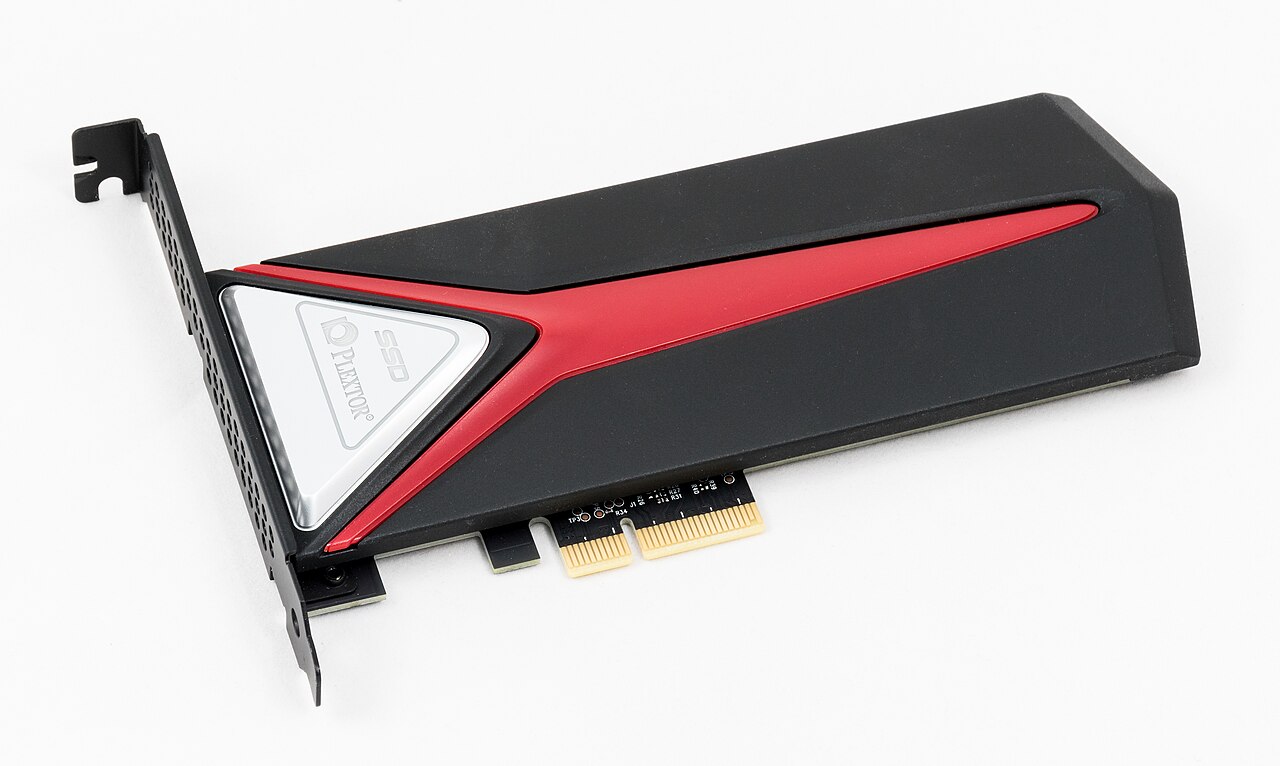

- SSDs are faster and have no moving parts but cost more per terabyte
- Hard drives are cheaper for large archives but are sensitive to drops while running
- Any single drive can fail, so keep more than one copy
- Buy for capacity first, then speed
When you decide to back up your files to an external drive, you quickly meet a choice: a hard disk drive (HDD) or a solid-state drive (SSD). Both can do the job. The right one depends on how much you need to store, how often you move files, and how you will carry or store the drive.
What is the difference?
A hard disk drive stores data on spinning magnetic platters read by a moving arm. The inside of one is shown in the photo above. A solid-state drive stores data in flash memory chips and has no moving parts. These descriptions are standard and are covered in the Wikipedia articles listed in the sources below.
That one difference explains most of the trade-offs.
Comparison table
| Factor | External SSD | External hard drive |
|---|---|---|
| Speed | Generally much faster, especially for many small files | Slower, and slows more when files are fragmented |
| Cost per terabyte | Usually higher | Usually lower |
| Noise | Silent | Can hum or click while working |
| Durability when moved | No moving parts, so tolerant of bumps | The arm and platters can be damaged by drops while running |
| Size and weight | Often pocket-sized | Often larger and heavier, especially for high capacity |
| Best for | Frequent backups, large photo or video projects you carry around | Big archives and a second copy that stays on a shelf |
Prices change often, so compare current listings yourself rather than relying on a number in an article.
How much capacity do you need?
Add up the data you want to protect, then choose a drive at least two to three times that size. Backup tools keep older versions of files, so the backup grows over time. If you have 400 GB of photos and documents, a 1 TB drive is tight and a 2 TB drive gives room.
If you use the built-in tools, the drive must be big enough to hold them. Windows Backup, described on Microsoft's support site, and Apple's Time Machine both write to external drives.
Speed matters less than you think for backups
After the first backup, most tools copy only changed files. A slower drive that runs overnight is fine for a household. Speed matters more if you:
- edit video or large photo libraries directly from the drive,
- back up many large files every day,
- or need to restore quickly after a failure.
If your computer's port and the drive's connection are mismatched, you will not get full speed. Check the connection type on the drive's box and on your computer, and use the cable that comes with the drive.
Reliability and lifespan
No drive lasts forever. Hard drives can fail from wear or shock. Flash memory in SSDs wears out after many writes, though ordinary backup use rarely reaches those limits, and SSDs that sit unpowered for very long periods may lose data. Both facts are described in the general reference articles below. The practical lessons are:
- Do not rely on one drive. The NCSC advises considering two backups, such as one online and one on a storage device, in case one is lost or stolen or the device fails.
- Replace drives that are several years old before they become a problem, and replace any drive that starts clicking, disconnecting or showing errors.
- Power on archive drives occasionally and check that files still open.
Handling tips
- Eject the drive properly before unplugging it.
- Avoid moving a hard drive while it is working.
- Store drives in a cool, dry place away from strong magnets and liquids.
- Keep a drive off-site or unplugged when it is not in use. The NCSC notes that a storage device should not stay connected when not in use, because some viruses also affect connected devices.
Encryption
If the drive holds personal or business data and could be lost, encrypt it. Windows and macOS include disk encryption features. Keep the recovery key or password somewhere separate, because a lost key can mean the data is gone.
Which should you buy?
- Choose an SSD if you carry the drive, back up large amounts often, or want speed and quiet. A modest capacity SSD works well for a laptop.
- Choose a hard drive if you need a lot of space for the money, such as an archive of family video, and the drive will sit on a desk or shelf.
- Buy both if the data is important: an SSD for daily backups, and a hard drive kept in another location. This also gives you two types of storage, as in the 3-2-1 rule.
Before you rely on it
Run the first backup. Then restore a few files to a different folder and open them. Check the drive's health tools every so often. See our guide to testing a restore.
Sources and further reading
How this page was made: drafted with the help of an AI writing assistant, then checked against the sources above. Software menus and policies change, so check the linked pages for the current version. Read our editorial policy or report a mistake.